Why is the app not working?
Common Frog issues
Most common issues can be solved by clearing the app cache and data, for example:
- The app is not starting
- The app crashes on the startup screen
- The current position is far from the real position
- You are unable to save your preferred city
- The widget is missing
How to solve: clean cache and data
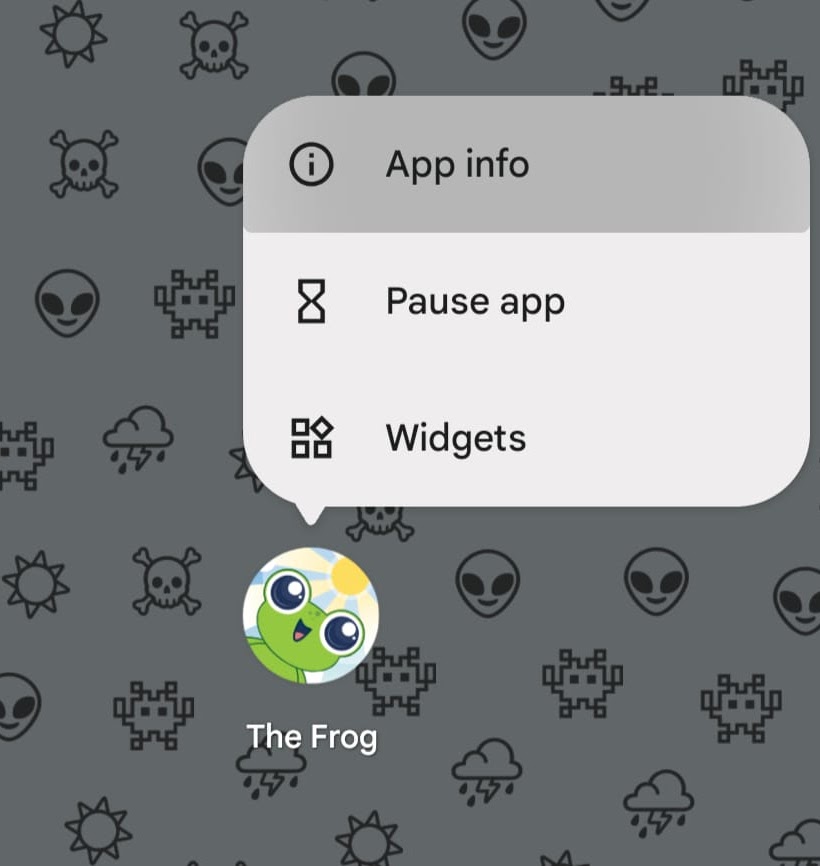
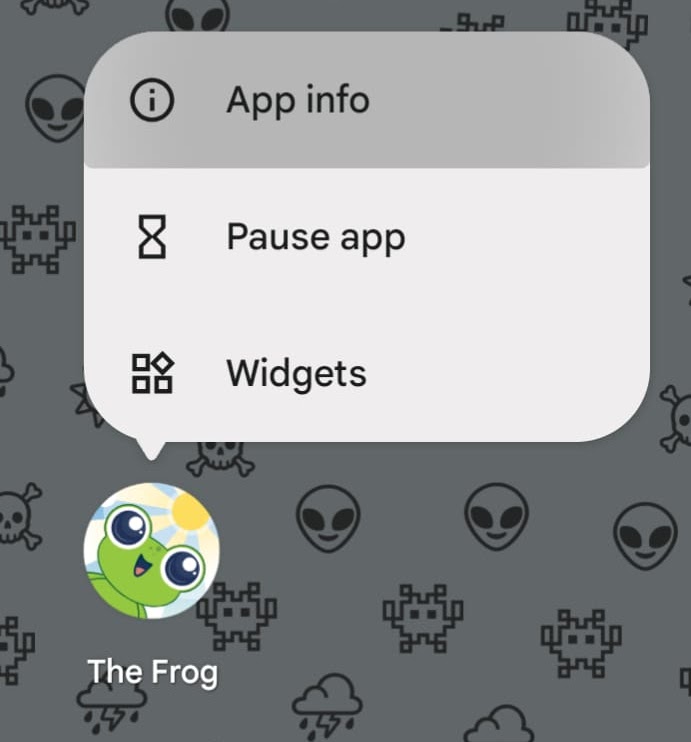
- Long press the app icon, then tap App info.
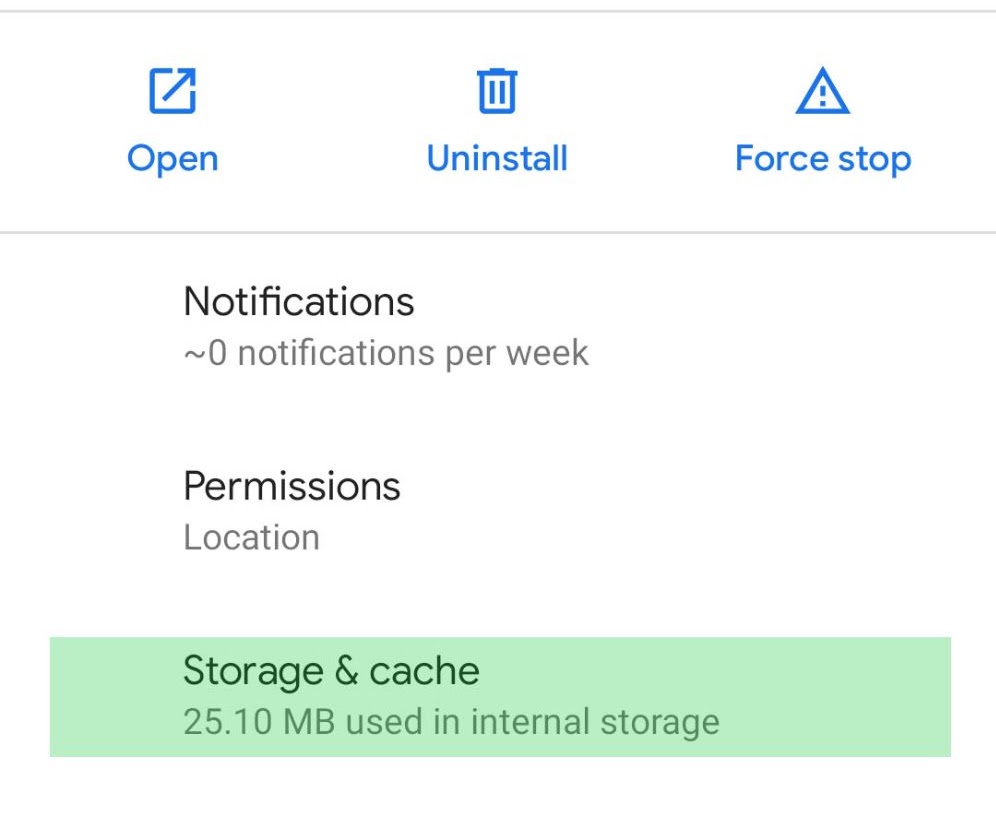
- Select Storage & cache.
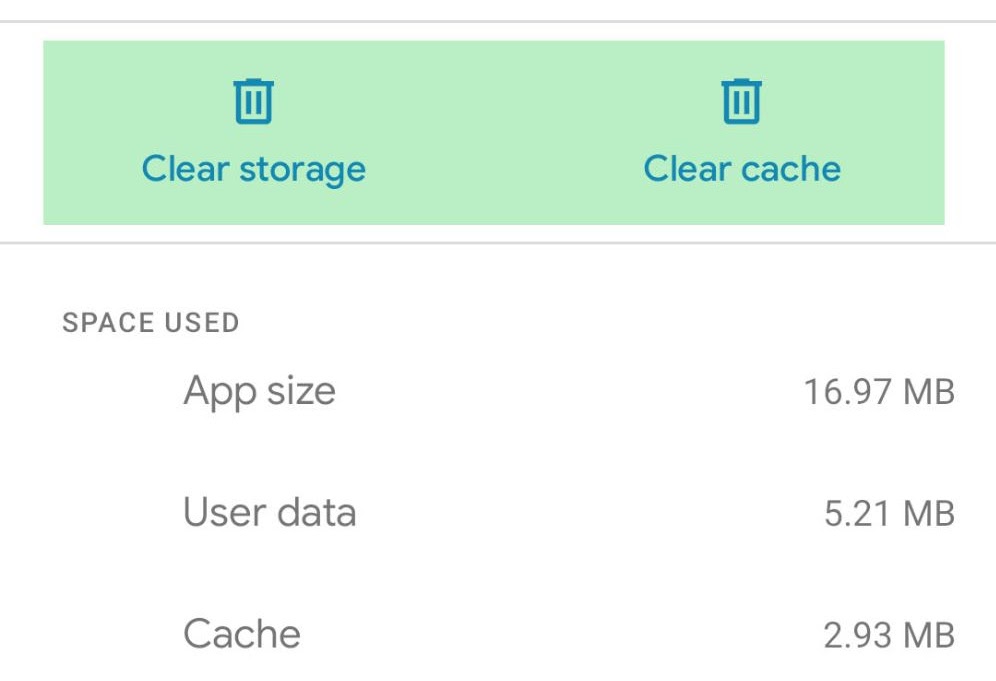
- Tap Clear cache and Clear storage.
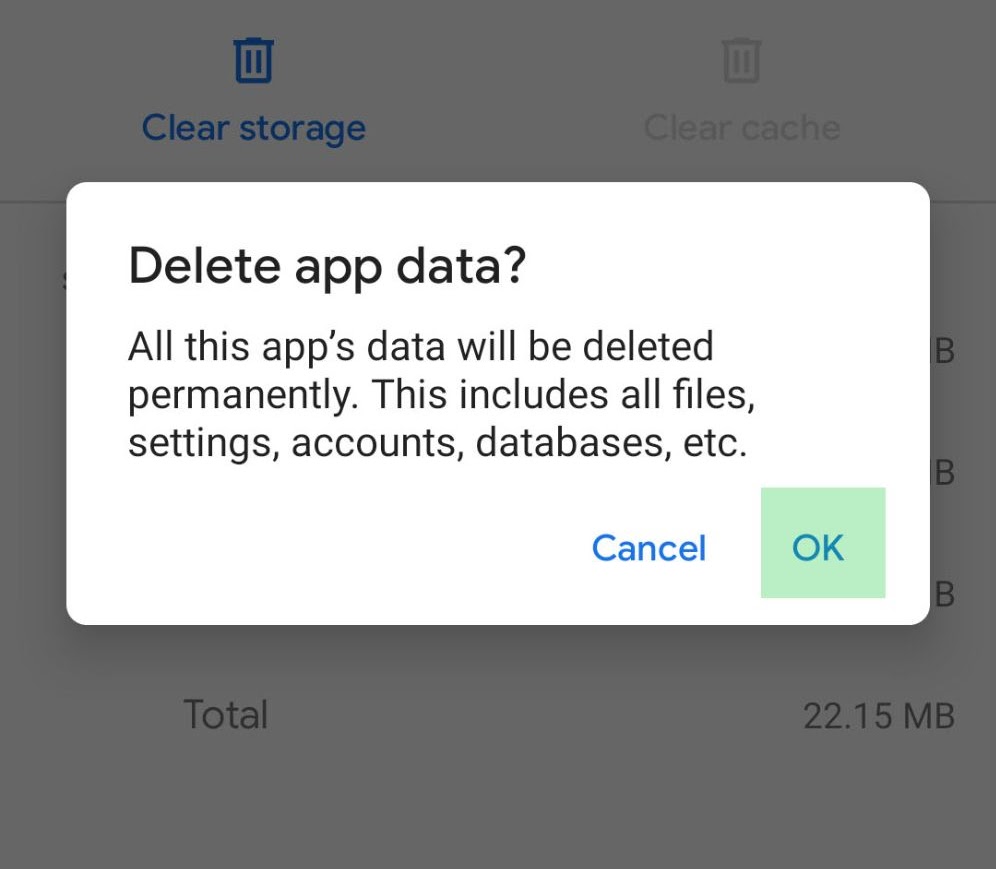
- Confirm with OK if a message appears.
- Restart The Frog app.
How can I change the language?
Default language
The app uses the same language as your smartphone. To use a different language for The Frog, follow the steps below.
Important: some of these steps work only on Android 14 and up.
From the app info menu
- Long press the app icon.
- Tap App info > Language.
- Choose a language.
From device settings
- Open your device Settings app.
- Tap System > Languages > App Languages.
- Select The Frog, then choose a language.
Apps set to follow the system default use the first supported language in the list.
Troubleshooting
If a language change does not apply, restart the app or your device and try again.
The navigation buttons are not visible
Full screen app
The app runs in fullscreen. If you don't see the navigation bar at the bottom of the screen, swipe up from the bottom edge and the buttons will appear.
How do I change units and other settings?
Change settings such as Celsius/Fahrenheit or Kilometers/Miles:
- Open the menu.
- Tap Settings.
- Make your changes.
- Close the menu. That's it 🐸
Still need help?
If you have any other issue, feel free to contact us at info@giovesoft.com